My AutoRun CD does not launch on Windows 10 or 11, why?
Short answer
On Windows 10 and Windows 11, your AutoRun Wizard CD will not launch silently the moment it is inserted. That is expected behavior, not a problem with your project. Windows reads your autorun.inf and then shows an AutoPlay notification. When you or your end user clicks it, Windows offers Run autorun.exe, and your AutoRun Wizard project launches.
If no notification appears at all, the cause is almost always one of three things:
- The files were burned inside a folder instead of at the root of the disc.
- AutoPlay is turned off or set to "Take no action" on that PC.
- The PC is managed by an employer or school that blocks AutoPlay by policy.
The steps below walk through each one. If double-clicking the CD drive in File Explorer launches your project, your AutoRun Wizard setup is correct.
What changed in Windows
AutoRun is a Windows feature, not an AutoRun Wizard feature. AutoRun Wizard builds the files Windows looks for; Windows decides what to do with them.
In the Windows XP era, inserting a CD could launch the program named in autorun.inf with no prompt. Malware abused this heavily, so Microsoft tightened it starting with Windows Vista and Windows 7. Windows 10 and Windows 11 keep that safer model:
| Media | What Windows 10/11 does with autorun.inf |
|---|---|
| CD or DVD | Reads it, then shows AutoPlay with a Run autorun.exe option. The user must click. |
| USB flash drive | Uses only the drive label and icon. The program line is ignored. |
| Network or mapped drive | Ignored. |
No autorun tool from any vendor can bypass this. Any product claiming silent launch on modern Windows is relying on settings the end user or their IT department has changed.
Step 1: Burn the files to the root of the disc
All three AutoRun Wizard files go on the disc, plus the file your project launches (your program, PDF, video or web page). They must sit at the top level of the CD, not inside a folder:
- autorun.inf - tells Windows what to run
- autorun.exe - the AutoRun Wizard launcher
- autorun.dat - your project settings
- Your launch file and any files it depends on
Right: D:\autorun.inf Wrong: D:\MyProject\autorun.inf
The most common mistake is dragging the project (Base Folder) onto the disc. Open the folder first, select everything inside it (Ctrl+A), and burn those files.
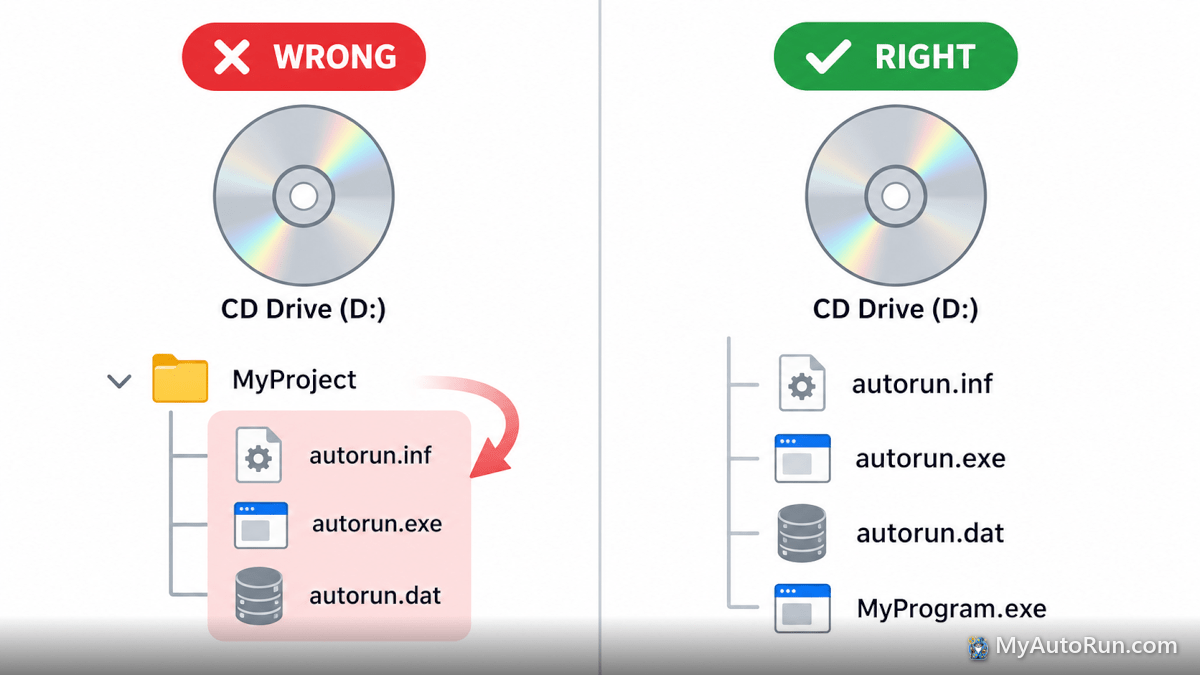
Burning with File Explorer
- Insert a blank CD or DVD.
- When Windows asks how you want to use the disc, choose With a CD/DVD player. Do not choose "Like a USB flash drive." That format (Live File System) is not read reliably for AutoPlay on other PCs.
- Open your AutoRun Wizard Base Folder, select all files inside it, and drag them into the disc window.
- Click Finish burning (on Windows 11 it is under the ... menu if it is not shown on the toolbar).
Burning with other software
- Create a Data disc, not an audio or video disc.
- Use the ISO 9660 + Joliet file system (the default in most burning tools).
- Finalize or close the disc when burning finishes.
Check the burned disc
Eject the disc and reinsert it. Open File Explorer, click This PC, and double-click the CD drive. You should see autorun.inf, autorun.exe and autorun.dat right away. If you see a single folder instead, reburn using the contents of that folder.
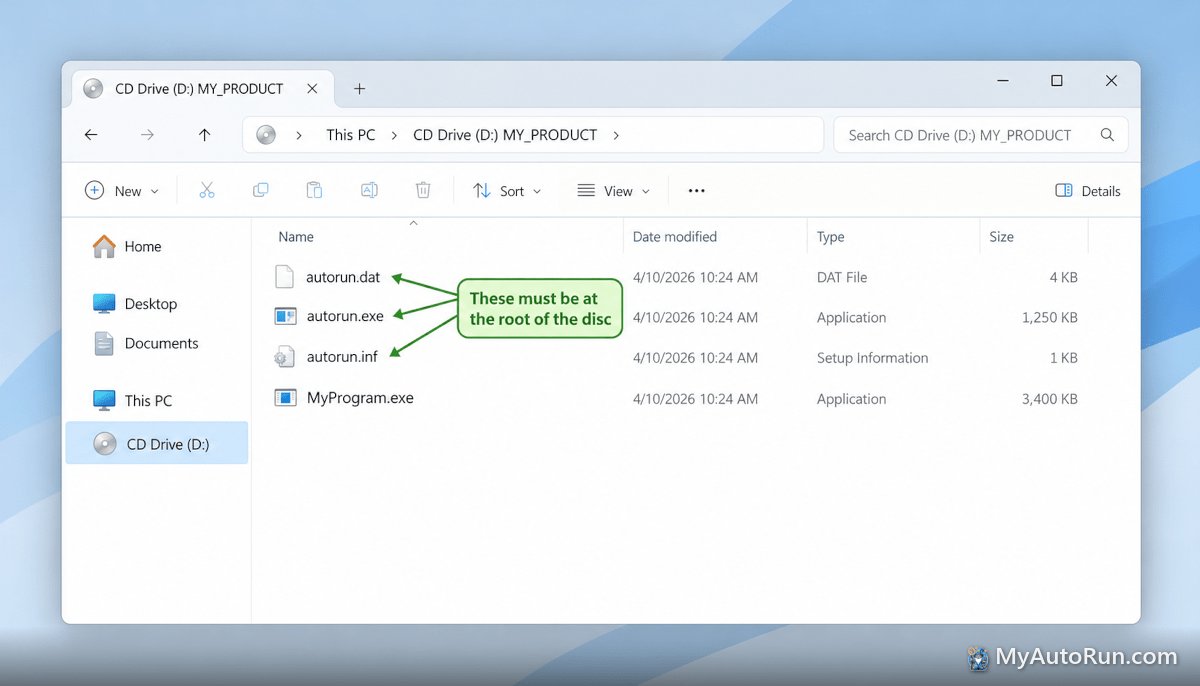
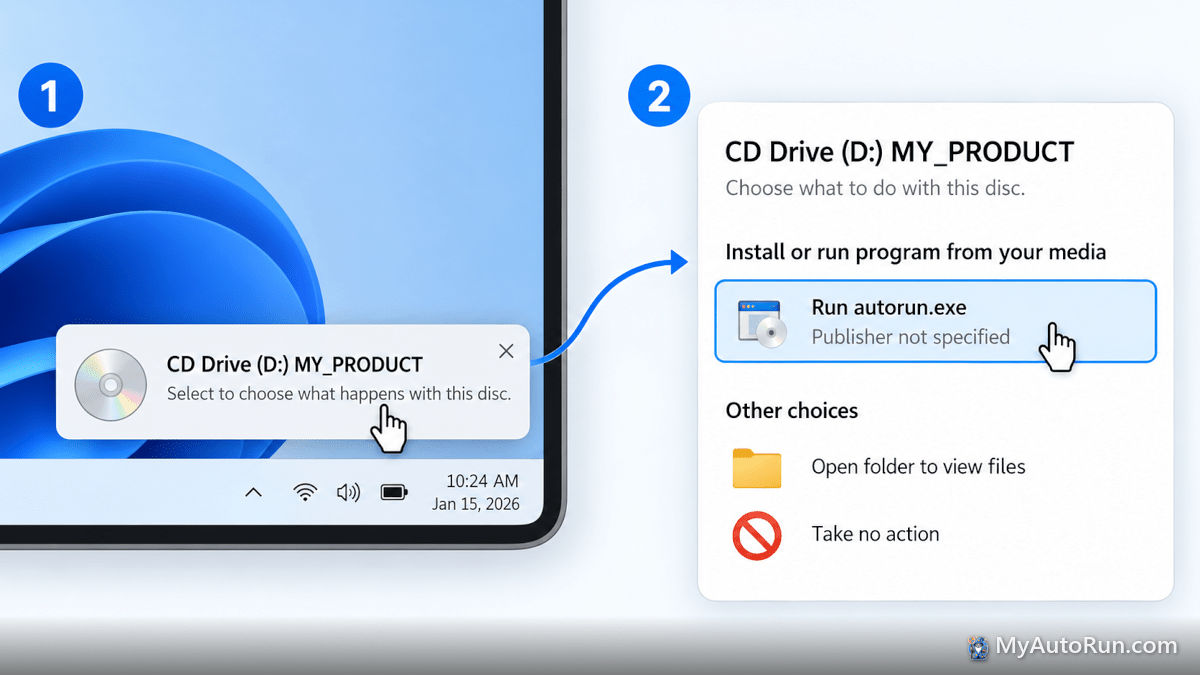
Step 2: What your end user sees on insert
On a Windows 10 or 11 PC with default settings, this is the normal sequence:
- The disc is inserted. Within a few seconds a notification appears in the lower-right corner of the screen, such as "Select to choose what happens with this disc."
- The user clicks the notification. The AutoPlay panel opens.
- The panel lists Run autorun.exe. The user clicks it.
- Your AutoRun Wizard project launches.
The notification disappears after a few seconds. If the user misses it, they can open File Explorer, right-click the CD drive and choose Open AutoPlay (on Windows 11, Show more options first), or simply double-click the CD drive.
If the user previously picked a default action for discs (for example "Open folder to view files"), Windows repeats that choice every time and skips the panel. Step 3 shows how to reset it.
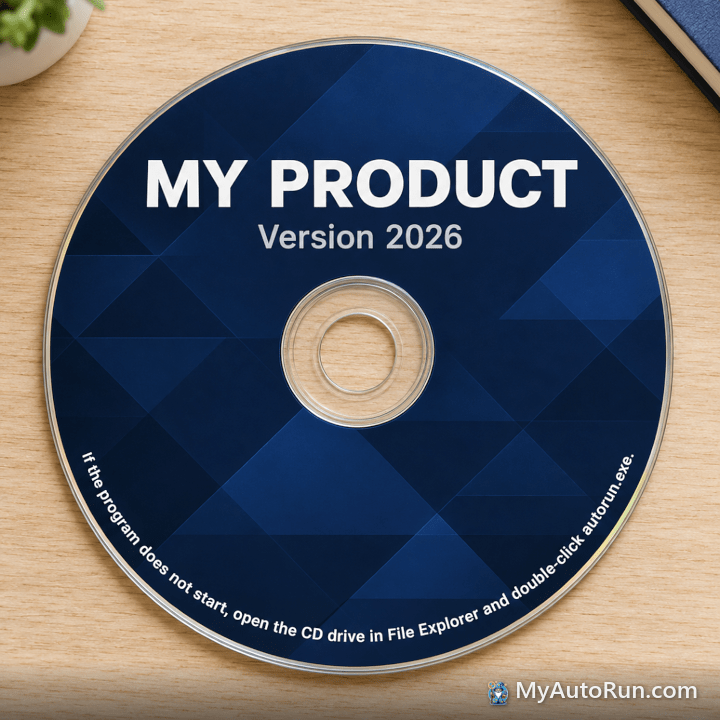
Tip for your end users: print a short line on the disc label or sleeve, such as "If the program does not start, open the CD drive in File Explorer and double-click autorun.exe." This covers every PC, including ones with AutoPlay turned off.
Step 3: Check AutoPlay settings on the PC
If no notification appears when the disc is inserted, AutoPlay may be off on that PC.
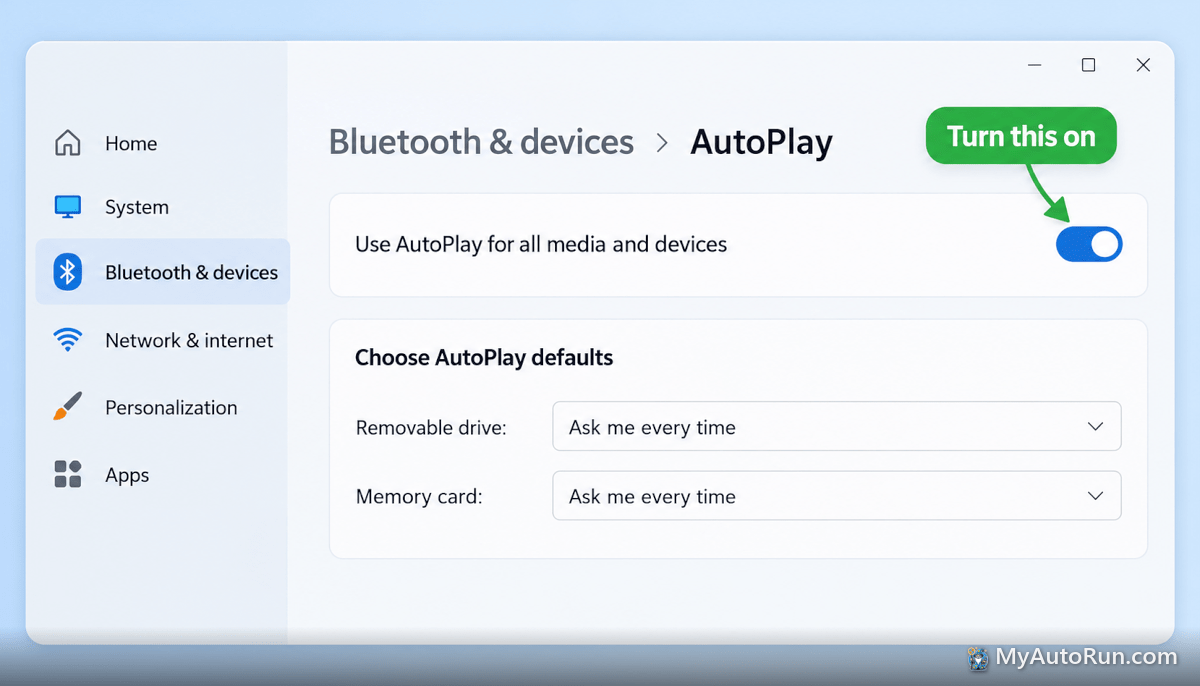
Windows 11
- Open Settings (Windows key + I).
- Go to Bluetooth & devices > AutoPlay.
- Turn on Use AutoPlay for all media and devices.
Windows 10
- Open Settings (Windows key + I).
- Go to Devices > AutoPlay.
- Turn on Use AutoPlay for all media and devices.
Set the CD and DVD default (both versions)
The Settings app only covers removable drives and memory cards. The CD and DVD choices are in the classic AutoPlay panel:
- Press Windows key + R, type
control /name Microsoft.AutoPlayand press Enter. - Confirm Use AutoPlay for all media and devices is checked.
- Find Software and games and set it to Ask me every time (recommended) or Install or run program from your media.
- Click Save.
If an earlier choice is stuck, click Reset all defaults at the bottom of that panel, then reinsert the disc.
Other Windows 11 protections that can block launch
- Windows 11 in S mode only runs apps from the Microsoft Store, so autorun.exe and most launch files will not run. The user must switch out of S mode.
- Smart App Control (Windows 11) can block programs it does not recognize. If your launch file is an unsigned .exe, a code-signing certificate helps it pass.
- Antivirus software sometimes blocks autorun.inf or autorun.exe on removable media. See why antivirus warns about autorun.exe.
Step 4: Work, school and government PCs
Many organizations turn AutoPlay off for every drive through Group Policy or Microsoft Intune. On those PCs the AutoPlay toggle may be grayed out or reset after each restart. Only the IT department can change this, and many will not. Plan for these users to double-click the CD drive or autorun.exe.
For IT administrators, these are the policies that control it. Path: Computer Configuration > Administrative Templates > Windows Components > AutoPlay Policies.
| Policy | Setting that allows the CD prompt |
|---|---|
| Turn off AutoPlay | Not Configured or Disabled |
| Set the default behavior for AutoRun | Not Configured, or Enabled with "Automatically execute autorun commands" |
| Disallow Autoplay for non-volume devices | Has no effect on CDs; leave as is |
| Prevent AutoPlay from remembering user choices | Not Configured |
The same restriction can also be set in the registry with the NoDriveTypeAutoRun value under HKEY_LOCAL_MACHINE\SOFTWARE\Microsoft\Windows\CurrentVersion\Policies\Explorer (or the same path under HKEY_CURRENT_USER). It is a bit mask: the CD-ROM bit is 0x20, so any value that includes it (such as 0xFF, which blocks every drive type) stops CDs from autorunning.
We do not recommend editing the registry or policy on PCs you do not manage. These settings exist to protect the organization, and changing them on a work PC may violate its IT policy.
What about USB flash drives?
On Windows 10 and 11, a USB flash drive will never launch your project automatically, and it will not offer "Run autorun.exe" in AutoPlay. Windows still uses the drive label and icon from autorun.inf, so your branding shows in File Explorer. See USB flash drives and AutoRun Wizard for the details.
Copy the same files to the root of the USB drive and tell your users to open the drive and double-click autorun.exe. If you need a true prompt on insert, distribute on CD or DVD instead.
Troubleshooting checklist
Work through these in order. Most problems are solved by the first three.
- autorun.inf, autorun.exe and autorun.dat are at the root of the disc, not in a folder.
- The disc was burned as a data disc in "With a CD/DVD player" (mastered) format and finalized.
- You ejected and reinserted the disc after burning (burning software can lock the drive).
- Double-clicking the CD drive in File Explorer launches your project.
- AutoPlay is turned on in Settings.
- "Software and games" is set to "Ask me every time" in the classic AutoPlay panel.
- The PC is not in Windows 11 S mode and Smart App Control is not blocking the program.
- The PC is not managed by an employer or school that disables AutoPlay.
- You tested on a second Windows 10 or 11 PC.
To check the open= line, right-click the CD drive, choose Open, and open autorun.inf in Notepad. The line beginning with open= should read autorun.exe, and autorun.exe must sit in the same location as autorun.inf. What is in an autorun.inf file?
If double-clicking the drive launches your project, your AutoRun Wizard configuration is correct and the remaining behavior is controlled by Windows. Still stuck? Contact us with your Windows version (Windows key + R, type winver) and a screenshot of the disc contents in File Explorer.